AI Mode: ask, follow up, and read the sources
On this page
AI Mode is a conversation with an AI assistant. You ask a question in your own words; before it answers, it searches the site's news for you, reads the best articles, and writes an answer that cites them. You can then ask follow-up questions, and the news results for your question stay in a column beside the chat.
#Open AI Mode
- Select the AI Mode tab, the first in the row of services, or choose Menu › AI Mode. The address is /chat/.
- Under an AI Overview, select Dive deeper in AI Mode to carry your search over as the first question.
- On a topic's page, select Ask AI about this topic to start a chat about that topic. See Ask AI about one topic.
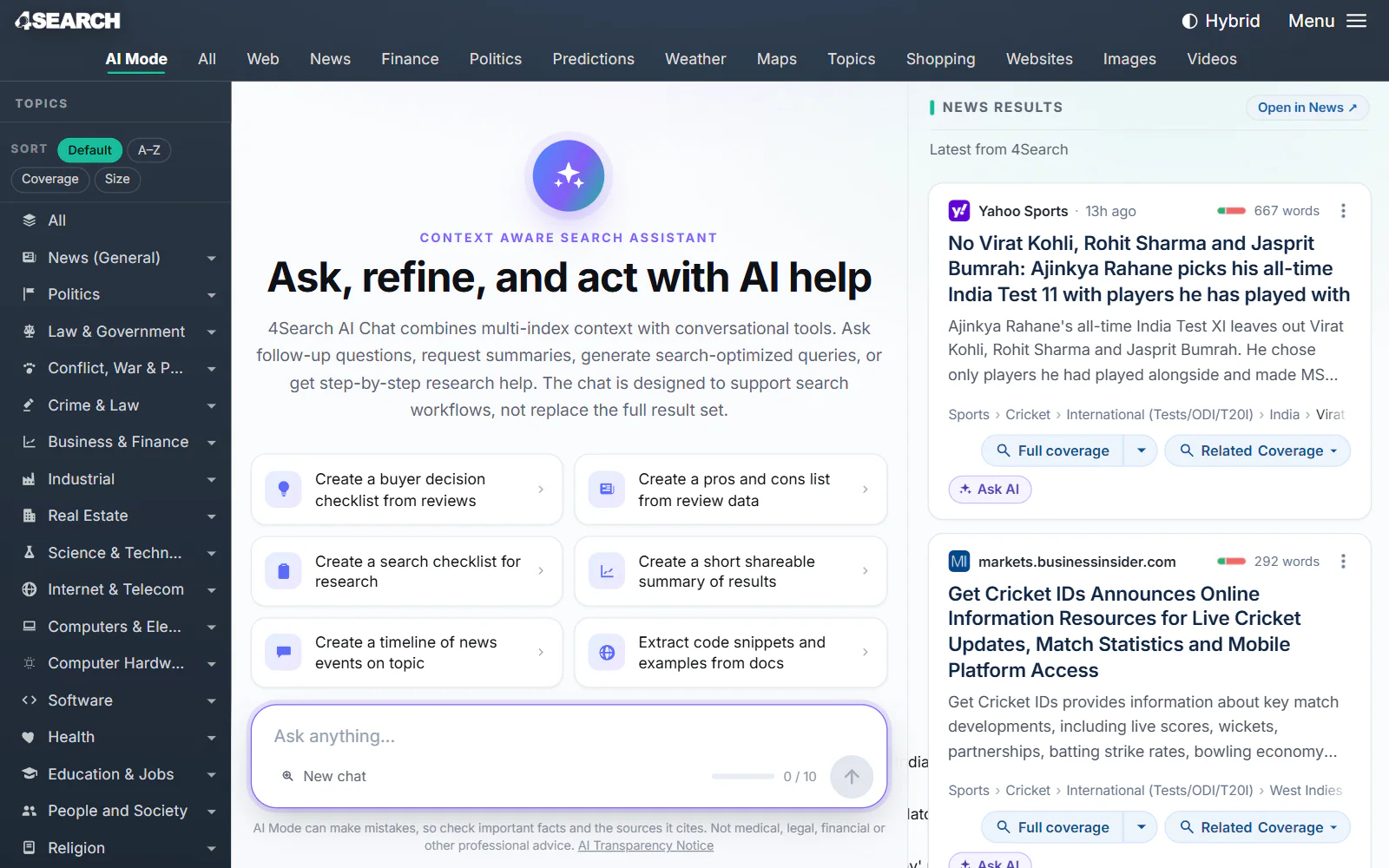
AI Mode before the first question. The starter questions and the headline on this screen differ from site to site.
- 1The AI Mode tab
- 2Starter questions
- 3Your message box
- 4Messages used in this chat
- 5News results beside the chat
#Ask your first question
- Type your question in the box at the bottom, which reads Ask anything…. A message can be up to 2,000 characters.
- Press Enter or select the arrow to send. Shift+Enter starts a new line instead.
- Or select one of the starter questions on the empty screen, or one of the headlines listed under In the news now, which asks about that story.
The first time, AI Mode asks for permission before it sends anything:
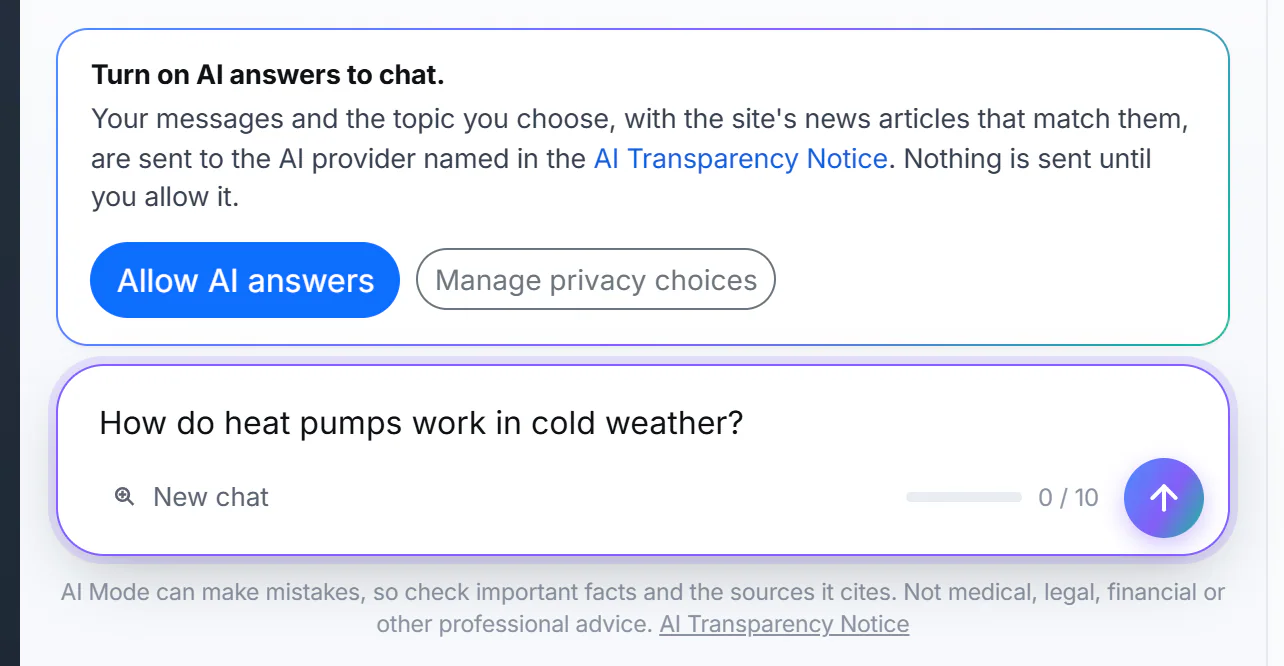
Select Allow AI answers once; your question is then sent.
- 1Nothing is sent until you allow it
- 2Allow AI answers
- 3Manage privacy choices
- 4What is sent, and to whom
Select Allow AI answers and your question goes on its way. See Turn AI answers on or off.
#While it answers
You see what AI Mode is doing: first Searching the site's News, then Reading a number of articles, with the outlets' names and icons, then Thinking. The answer then appears a few words at a time. If the wait is long, a count of seconds shows that it is still working.
To stop an answer, select the square button where the send arrow was, or press Esc. What was already written stays, marked Stopped before the answer finished.
#Read the answer
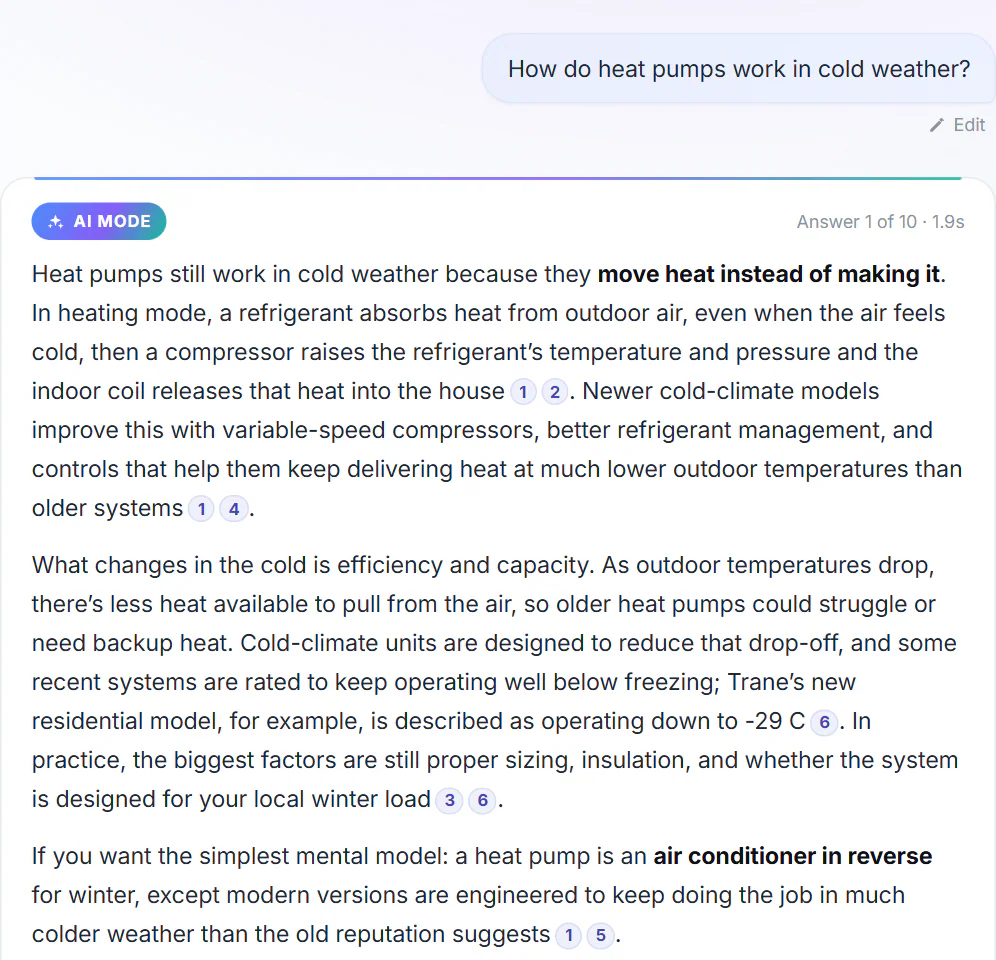
The first answer to How do heat pumps work in cold weather?, with numbered citations to the articles it read.
- 1Your question
- 2Which answer this is, and how long it took
- 3A citation: the number of a source
- The label above the answer says which answer this is, such as Answer 1 of 10, and how long it took.
- The small numbers in the text are citations. Each one points to an article in the Sources box under the answer; select a number to open that article. See Sources and citations.
- Links in the answer and under Next steps run searches on this site. A News link opens its results in the column beside the chat instead of leaving the page.
Under the answer you find the sources, ready-made searches, suggested next questions, and buttons to copy, share, save, listen and regenerate:
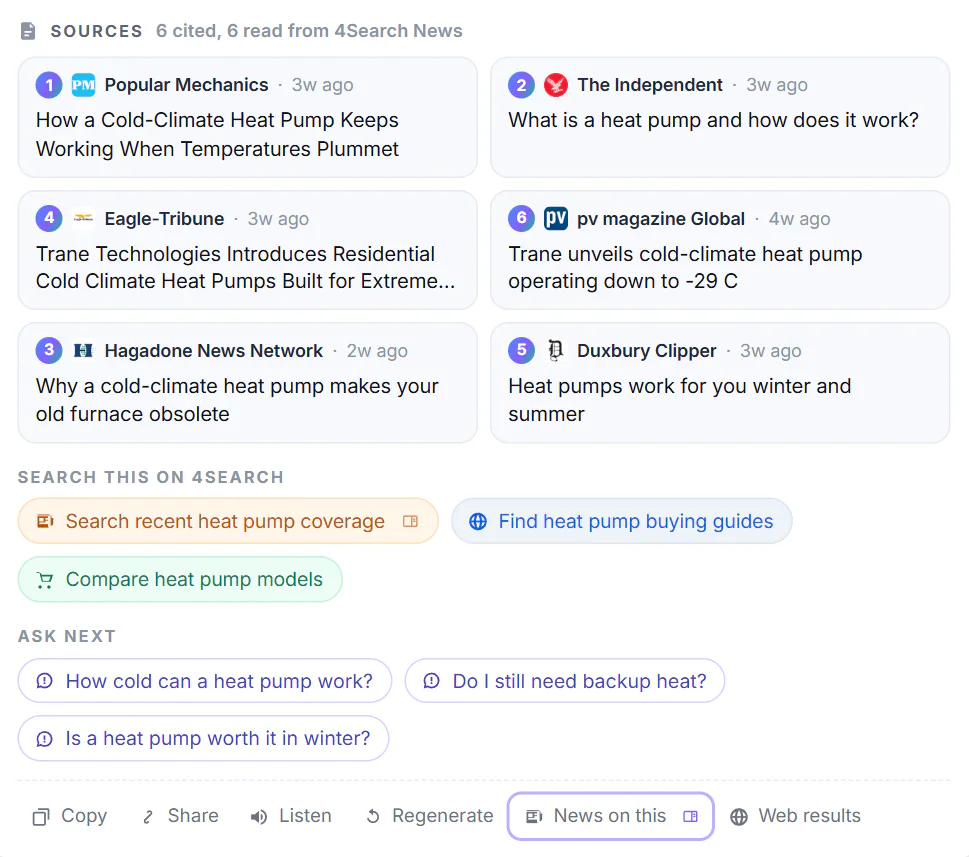
Everything under an answer. The sources are listed in the order the answer first cites them.
- 1How many articles were cited and read
- 2A source: select it to open the article
- 3Search the same words on this site
- 4Questions to ask next
- 5Copy, share, listen, regenerate
#Ask a follow-up
Type your next question in the box, which now reads Ask a follow-up…, or select one of the questions under Ask next. AI Mode remembers the conversation, so a short follow-up such as What about in very cold places? is understood in context, and its search reuses words from your earlier question. See Follow-up questions and the results column.
#The message limit and starting over
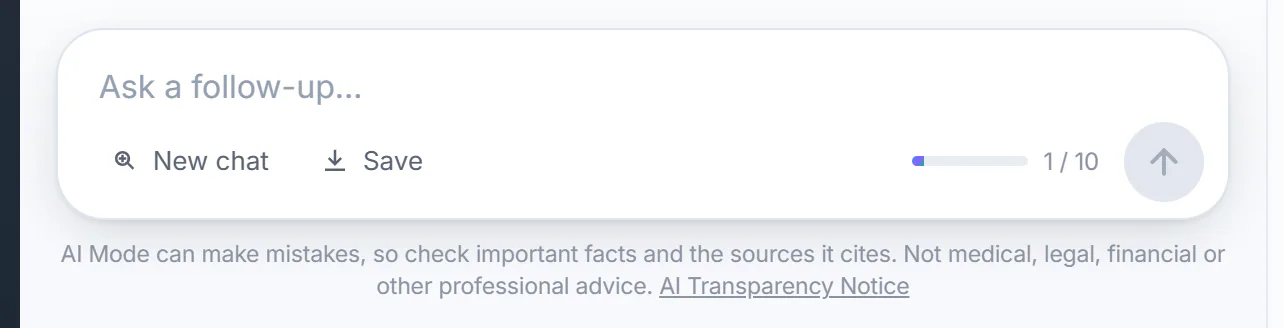
The message box after one answer: 1 message of 10 used.
- 1Type a follow-up here
- 2New chat
- 3Save the chat as a file
- 4Messages used: 1 of 10
- 5Send
- 10 messages per chat. The counter beside the send button shows how many you have used, such as 1 / 10. Every message you send counts, including a regenerated answer and an edited question.
- When the chat is full, a notice says so and the box switches off. Your conversation stays on screen until you select Start a new chat.
- New chat clears the conversation and starts a fresh one at any time.
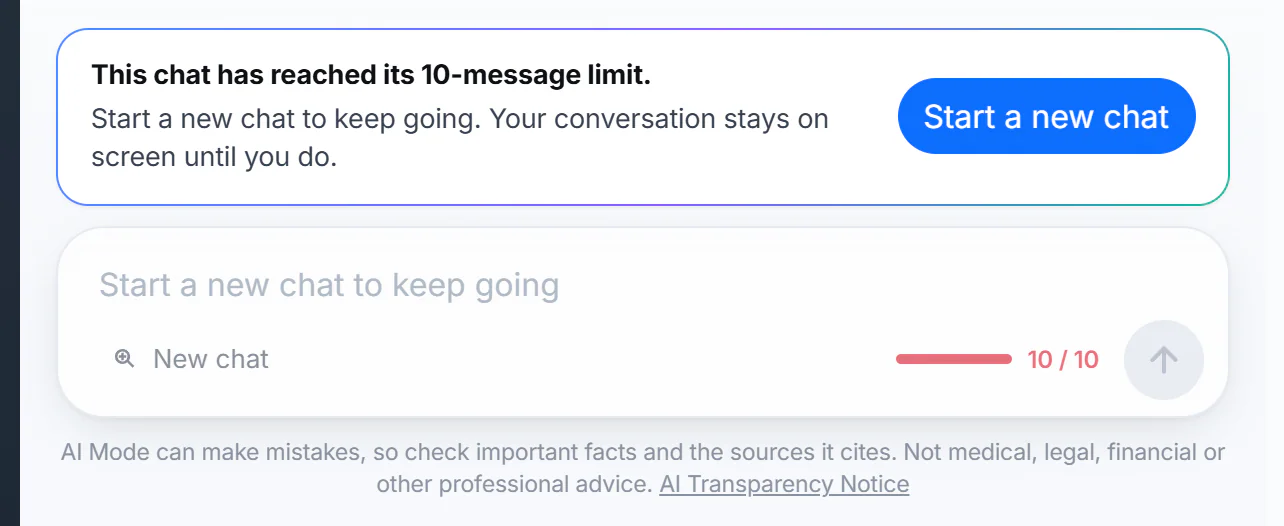
A chat at its limit. Start a new chat to keep asking.
- 1The chat has reached its limit
- 2Start a new chat
- 3The message box is off until you start a new chat
- 4The counter is full
#On a narrow screen
Below about 1,200 pixels wide, as on most phones and tablets, the results column moves below the conversation. Select Results in the message box bar to jump down to it, and Back to chat to return.
#Common questions
Why does it say Answer 1 of 10 when the counter says 2 / 10?
The label counts the answers on screen; the counter counts the messages you have sent. Editing your question or regenerating an answer replaces what is on screen but still uses a message.
Can I come back to a chat tomorrow?
Not from 4Search: the chat lives in the browser tab and is gone when you close it. To keep it, select Save before you leave, or Copy the answers you need.
Can I paste a long text and ask about it?
Yes, up to 2,000 characters per message. For longer texts, paste the part that matters most, or split it over two messages.
Does AI Mode search the web?
Its answers are built from the site's own news index. The links it suggests can run a Web or Shopping search on this site, and Web results under an answer runs your question as a Web search.
What keys can I use?
Enter sends, Shift+Enter adds a line, Esc stops an answer, and / puts the cursor in the message box when you are not typing elsewhere.